

... Using The System Table USysRibbons
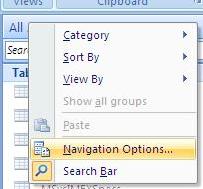 Make sure that "system objects" are visible. To show them click with the right mouse button on the title of "navigation pane" and select "navigation options...". You can also activate the options by "Office Menu" / "Access Options" / "Current Database" / "Navigation" / button "Navigation options".
Tick the checkbox "System objects" in "Display options".
Create a new table called "USysRibbons" with following fields:
|
Field Name |
Field Type |
Field Size |
|
ID |
AutoNumber |
Long Integer |
|
RibbonName |
Text |
255 |
|
RibbonXml |
Memo |
|
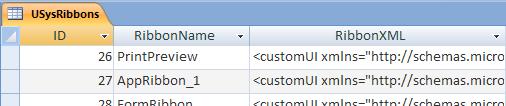
Enter a unique "RibbonName" and the appropriate XML in field "RibbonXML".
Assign the ribbon for this database:
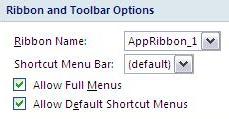 "Office Button" / "Access-Options" / "Current Database" / "Ribbon and Toolbar Options" / "Ribbon Name:" select the ribbon that should be loaded when you open the database.
After re-start of the database your ribbon will be displayed.
 18.03.2021
New Download added. ...
 |
 |
25.10.2018Update Site "Trusted Locations" ...
|
|
|
22.10.2018New Download added. ...
|
|
|
08.04.2018IDBE RibbonCreator 2016 (x86 and x64) for Office 2013 and Office 2016 - new release. ...
|
|
|